Migrate Repos to Cloud#
Repositories can be migrated from the on-prem (GHES) environment to the cloud (GHEC). There are two basic methods, both have to be done on a per-repo basis. One is to just move the 'git data', which includes Branches and Commit history but not things like Pull Requests or Issues or reference to users that took those actions. This is the simplest method. The second more involved option will move all the 'github data' as well (PRs and Issues, etc).
Migrate using the browser importer tool#
Log into github.com and follow these directions. This will leave the original repository in place so you will need to manually delete it.
- Enter the URL for the repository; copied from the browser is fine
- The importer will ask for a username and password
- Username
- Enter your University email
- Password
- Generate a personal access token on github.umn.edu to use for the password
- Username
Migrate using the CLI#
Migrating a repo and its data requires the user to either be an Organization owner on both GHES and GHEC orgs respectively or have the 'migrate' role.
The following are steps to migrate a single repository at a time using DevEx-managed Azure Blob storage already configured on github.umn.edu.
- This will not remove the repo from the on-prem server
- This method migrates the git data along with most of the github data, such as PRs, wikis, projects, issues, etc
Steps#
- Create a classic PAT (personal access token) on github.umn.edu, then paste it somewhere you can reference it later
- Scopes to set on both PATs
- The minimum scopes work for both:
repo, admin:org, and workflow)
- The minimum scopes work for both:
- Scopes to set on both PATs
- Repeat Step 1, but on GitHub.com
- After you save the PAT, click Configure SSO to Authorize the token on your organization (Note: you will need to regenerate the token if you don't copy and save it before clicking Configure SSO)
- Install the github cli wherever you want to run the commands
- GitHub: Installing the CLI
- This has been tested on RHEL9 VMs from Hosting Team
- Add the GEI extention to the cli by running
gh extension install github/gh-gei- GitHub: Using the GitHub Enterprise Importer extension (for reference)
- When you are asked to
gh auth login(if it doesn't you may already be logged in so rungh auth loginto revalidate). Make the following choices:- Where do you use GitHub -> Github.com (default)
- What is your preferred protocol for Git operations on this host?: HTTPS
- Authenticate Git with your GitHub credentials?: Yes
- How would you like to authenticate GitHub CLI?: Paste an authentication token, then provide it a token; it should be the same token as generated above on GitHub.com
- Log in to github.umn.edu from the CLI
- Run
gh auth loginagain - Where do you use GitHub -> GitHub Enterprise Server or Other (different versions label it differently)
- Hostname:
github.umn.edu(Don't add the https or trailing slash) - What is your preferred protocol for Git operations on this host?: HTTPS
- Authenticate Git with your GitHub credentials?: Yes
- How would you like to authenticate GitHub CLI?: Paste an authentication token, then provide it a token; it should be the same token as generated above on GitHub.com
- Run
- Set environmental variables
- You only need to set
GH_PAT(from github.com) andGH_SOURCE_PAT(from github.umn.edu). These are the same as you used forgh auth login
- You only need to set
- Run the following code snippet, replacing the these variables:
- SOURCE: This is the short name in the URL of the organization on github.umn.edu (ie if the repo is https://github.umn.edu/oit-hosting/itac-k8s, set this to
oit-hosting) - CURRENT-NAME: Name of the repo (so in this example it would be
itac-k8s) - DESTINATION: Name of the destination org in github.com (ie If I"m moving them to https://github.com/umn-devex-test it would be
mn-devex-test) - NEW-NAME Name of the repo it will create in github.com. You can give it a new name or just set it the same as CURRENT-NAME to keep it the same
gh gei migrate-repo --github-source-org SOURCE --source-repo CURRENT-NAME --github-target-org DESTINATION --target-repo NEW-NAME --ghes-api-url https://github.umn.edu/api/v3
- SOURCE: This is the short name in the URL of the organization on github.umn.edu (ie if the repo is https://github.umn.edu/oit-hosting/itac-k8s, set this to
Reclaim Mannequins#
When you first migrate your repos, previous commits will be shown as committed by Mannequins. To link your github.com user to your previous github.umn.edu commits, follow These Instructions.
Actions Settings#
After migrating a repository to GHEC, it may have improper settings for Github Actions as it may override the Organization settings. To check, go to the Settings page for the repository, under 'Code and automation' on the left panel expand 'Actions' and select General. If the 'Actions permissions' is set to the middle radio button as seen below, switch it to the 3rd option and save.
Bad:#

Good:#

Repo Cleanup#
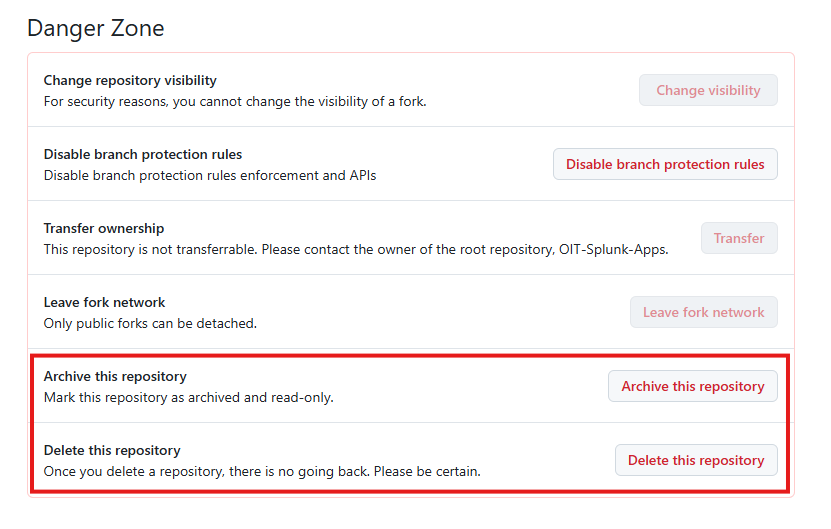
Once you have migrated your repository from on-prem (GHES) to the cloud (GHEC), consider either archiving (read-only) or deleting the repository from on-prem (GHES). This will reduce confusion between the old repository and migrated repository and help to free up space on the on-prem appliance.
To delete or archive the repository, open the repository on github.umn.edu, go to Settings (for example, https://github.umn.edu/<OWNER>/<REPO>/settings), then scroll to the bottom of the page to the Danger Zone section. There you will find the options to archive or delete the repository.
Warning
While deleting the repository is helpful in freeing up space on the on-prem appliance, deleted repositories cannot be recovered so this should be done with caution. Archiving the repository for a period of time before deletion may be a safe way to ensure it is not being used anymore.
Contact Info#
For assistance email devex@umn.edu.